
Task Tracker Template
Manage tasks, track progress, and automate alerts. A visual, all-in-one solution for teams to stay organized and on time.
What is this task tracker template
Task Tracker is a complete, ready-to-run system for managing team work — not a blank spreadsheet you have to build up yourself. The moment you copy it into your workspace, you get a structured task database, an assignee workload view, and a live dashboard that are already wired together, so a team can start logging and tracking real work in minutes instead of designing a process from scratch.
Every task is a row carrying the fields a team actually needs — status, priority, assignee, due date, and progress — so nothing lives only in someone's head or a scattered chat thread. As work moves forward, the workload chart shows who is overloaded and who still has capacity, while the dashboard rolls raw activity up into a clear picture of what's on track, what's blocked, and what's slipping.
It's built for small teams, project leads, and operations managers who want accountability without heavyweight project-management software. Use it as-is for daily standups and sprint tracking, or treat it as a starting point and reshape the stages, fields, and alerts to match how your team already works.
What's inside this task tracker template
The template ships as a complete task management system — not just a table. You get a structured task database and a pre-built dashboard that turns raw task data into team visibility, all connected out of the box.
Task Management
The working database for your team's tasks. Each record is one task with an owner, status, dates and priority. The default grid view groups tasks by progress so the board reads itself.
- 10 ready-made fields covering owner, status, dates and priority
- Grid view grouped by progress: Completed, In Progress, Not Started
- 20 sample tasks from a real software project you can replace with your own
Task Management Dashboard
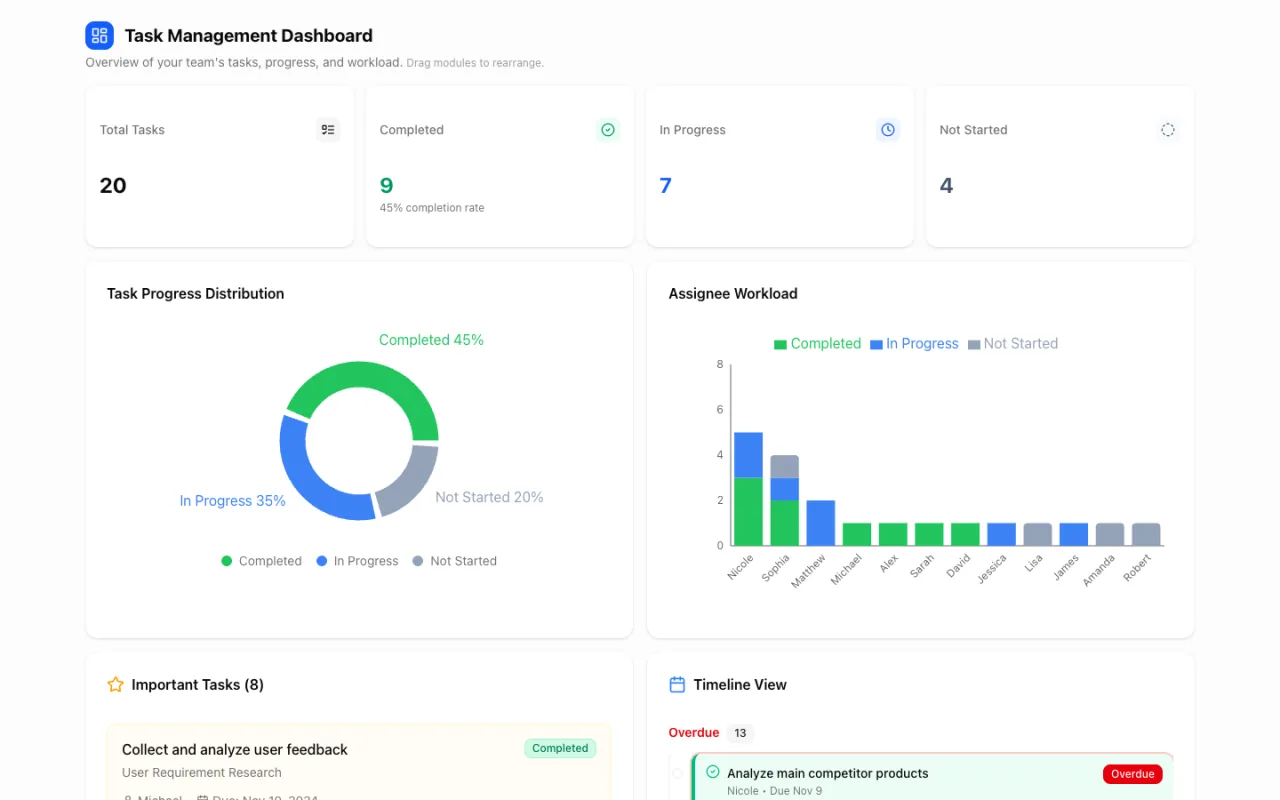
A live dashboard built on top of the table — publish it to your team or keep it as your personal mission control. Every chart updates automatically as tasks change.
- Headline stats: total tasks, completed, in progress, not started, and completion rate
- Task progress distribution chart and assignee workload chart
- Important tasks list and a timeline view that surfaces overdue work
The task fields, already set up for you
No blank-page setup. The Task Management table comes with the ten fields a team actually needs to run tasks — from first draft to done.
| Field | Type | What it's for |
|---|---|---|
| Task Description | Text | The full description of what needs to be done. |
| Task Summary | Text | A one-line outcome summary, e.g. “Collect and analyze user feedback”. |
| Assignee | Text | Who owns the task — powers the workload chart on the dashboard. |
| Progress | Single select | Completed / In Progress / Not Started. The grid view groups tasks by this field. |
| Start Date | Date | When work begins — the start of the task timeline. |
| Expected Completion Date | Date | The deadline. Overdue tasks are flagged automatically on the dashboard timeline. |
| Actual Completion Date | Date | When it really finished — compare planned vs. actual to improve estimates. |
| Important | Checkbox | Flag priority tasks; they appear in the dashboard's Important Tasks list. |
| Latest Progress Update | Text | The most recent status note, e.g. “Homepage 90% done” — no more status meetings. |
| Notes | Text | Free-form context, links and decisions that shouldn't get lost. |
Why teams track tasks in Teable instead of a spreadsheet
A static task list goes stale the moment work changes. This template keeps the plan, the people and the progress in one living system.
Progress at a glance
Tasks are grouped by status — Completed, In Progress, Not Started — so you see the state of the project without opening a single record.
Deadlines that flag themselves
Start, expected and actual completion dates are built in. The dashboard timeline highlights overdue tasks, and you can add an automation to alert assignees before a deadline slips.
Workload you can rebalance
The assignee workload chart shows who is carrying how many tasks by status — spot the overloaded teammate before they burn out.
A dashboard that writes itself
Completion rate, progress distribution, important tasks — every chart reads from the same table. Update a task once; every report updates.
Priority where it matters
The Important checkbox feeds a dedicated list on the dashboard, so critical tasks never scroll out of sight.
Grows into your real system
Start with the template, then add views (Kanban, Calendar, Gantt), forms to intake requests, and automations — it becomes your team's operating system, not another file to maintain.
3 ways teams use this task tracker
The sample data is a software project, but the structure fits any team that ships work with owners and deadlines.
Product & engineering sprints
Track features from design to release. Owners, progress and the latest update live on the task itself, and the dashboard doubles as your stand-up — overdue timeline included.
Small business operations
Run launches, campaigns and recurring ops work in one place. The important-tasks list keeps the owner's attention on what can't slip this week.
Freelancers & agencies
One base per client or one for everything — assignees, deadlines and completion rate give you a client-ready progress view you can publish as a live link.
How to use this template
From zero to a working task system in under five minutes.
- 1
Click “Use template”
The template — table, fields, grouped view, sample tasks and the dashboard — is copied into your own Teable workspace. Free to start, no credit card required.
- 2
Replace the sample tasks with yours
Delete the 20 example records and add your real tasks: description, assignee, progress and dates. Import from CSV or Excel if your task list already lives elsewhere.
- 3
Run your week from the dashboard
Open the Task Management Dashboard to see completion rate, workload and overdue items. Publish it as a live link for the team, and add automations for deadline alerts when you're ready.
Make it yours with Teable AI
The template is the starting point, not the ceiling. Teable builds AI into every table — reshape the structure by describing what you want, migrate your existing tasks in, and hand the busywork to an automation. Four ways to turn this task tracker into your team's system:
Reshape the stages to your workflow
Progress is a normal select field. Tell Teable AI the stages your team actually uses and it rewrites the options — the dashboard's charts update on their own.
Bring your existing tasks in
Don't retype anything. Connect & Migrate pulls your current tasks out of Excel, CSV or another tool and maps the columns onto these fields for you.
Let AI draft the write-ups
Task Summary and Latest Progress Update are perfect for AI to fill. Point it at Task Description and it keeps every record's summary written for you.
Automate the nudges
Super Automation turns a sentence into a running workflow. Watch the Important flag and the Expected Completion Date so nothing slips quietly.
Take this workflow further
Explore tools for adapting or expanding this template to fit your team.
Frequently asked questions
Is this task tracker template free?
Yes. You can copy the template into a free Teable workspace and use it with your team. The free plan covers tables, views, dashboards and collaboration; paid plans add higher record limits and advanced features.
What's included in the template?
Two connected pieces: the Task Management table (10 pre-built fields, a grid view grouped by progress, and 20 sample tasks) and the Task Management Dashboard app (completion stats, progress distribution, assignee workload, important tasks and an overdue timeline).
Can I customize the fields and views?
Absolutely. Everything is a normal Teable table after you copy it — rename fields, add your own (priority levels, tags, links to other tables), or add Kanban, Calendar and Gantt views without touching the dashboard's data source.
How do I share the tracker with my team?
Invite teammates into the base to collaborate in real time, or publish the dashboard as a live public link for read-only visibility — useful for clients and stakeholders who just need status.
Can I get alerts when a task is about to be overdue?
Yes. Teable automations can watch the Expected Completion Date and notify the assignee or a channel when a deadline approaches. The template keeps dates structured so setting up the alert takes minutes.
Can I import my existing tasks from Excel or another tool?
Yes. Teable imports CSV and Excel files directly into the table, so you can move an existing task list in without re-typing it. Field types like dates and selects are mapped during import.
Related templates
Start tracking your tasks in minutes
Copy the Task Tracker template into your workspace — table, views and dashboard included. Free to start.


