








CSV compare for changes you can review and export

Compare two CSV files by ID, review the changed values, and choose what to keep. Start free with files on your device or try the sample below.

Compare your CSV files

Comparison and downloads run on your device. No account needed.

UTF-8 CSV or tab-separated text · 2 MiB, 10,000 records, 100,000 cells and 100 columns per file

Original CSV

Updated CSV

Trusted by teams at

  • UOL
  • Al Jazeera
  • Purdue University
  • Procter & Gamble
  • Google DeepMind
  • F5
  • Concordia University
  • Arthur Murray International

What does CSV compare actually compare?

A CSV diff compares records, not line positions. Choose an ID such as a SKU or customer number to match each record across two exports. Reordering the same rows creates no changes. A shared key with different values becomes a changed record; a key on only one side becomes an addition or removal.

  • Use a composite key when one column is not enough: for example, SKU plus warehouse. Every key must be present and unique within each file.
  • Different column names are fine. Map Product code to SKU and Cost to Price, then skip export timestamps or other columns outside the review.
  • Values stay as text. Leading zeros survive; 12 and 12.00 are different by default. Use the optional space and case settings only when those differences are irrelevant.
Two tables connected by matching key tokens

Put a change list to work

Supplier price updates

Match the previous catalogue and the new price list by SKU. Review the before-and-after price, distinguish new products from items missing in the new list, and accept only the changes the buyer has checked. Skip supplier export dates so they do not drown out useful changes.

Warehouse stock checks

Compare two stock snapshots by SKU and location. A composite key keeps the same item in two warehouses separate. Inspect quantity differences as literal values, then give unexpected records to the operations team instead of treating every missing row as an instruction to delete.

Migration spot checks

Compare extracts from the old system and the new one using stable record IDs. Find missing IDs and changed mapped values, keep the report with the migration batch, and investigate exceptions alongside the other checks in your migration plan.

Choose the changes that make the next file

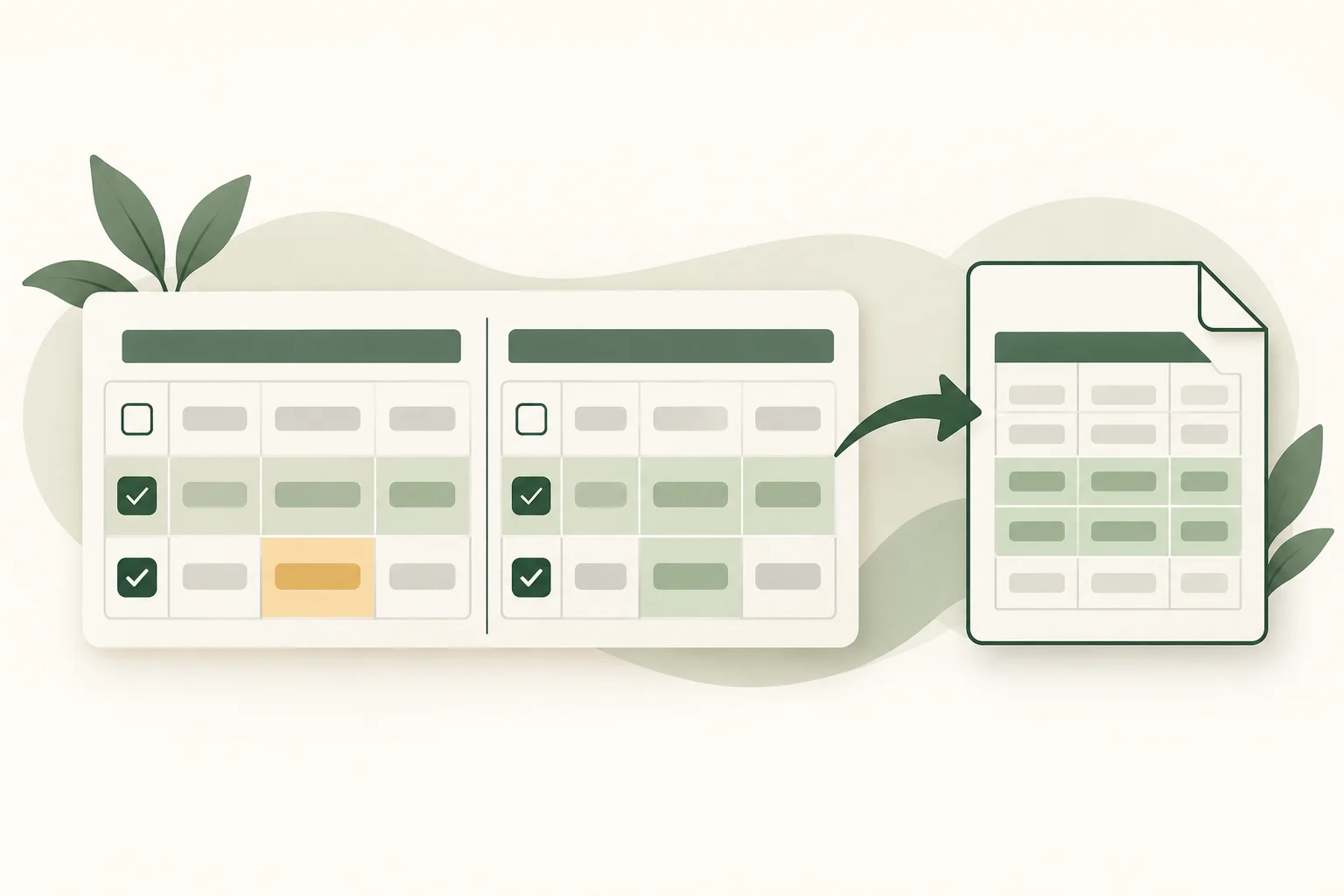
The reviewed CSV starts from your original table. Approve a changed record to copy its changed mapped cells, an added record to append it, or a removed record to omit it. Leave a change unchecked to keep the original position and values. You can change these decisions before every download.

  • The change report keeps both complete records, their key, change type and approval state. Use it as the handoff file when another person needs the context.
  • The reviewed CSV keeps original headers and original-only fields. New rows receive values from mapped columns; other cells stay empty. Updated-only columns are not silently added.
  • Exports use UTF-8 with a BOM and quoted cells. Formula-looking values receive a text prefix for spreadsheet review, so inspect those cells before importing into a downstream system.
Reviewed table rows with a selected update flowing into a clean export

Use the right kind of comparison

A row-aware diff is useful when records are the unit of work. Keep a text diff for text, and a spreadsheet for calculations or a one-off manual investigation.

ApproachBest fitNext step
Text diffSource files and exact line-by-line editsRead or merge changed lines
SpreadsheetFormulas, flexible analysis and manual checksBuild lookups and review the workbook
This CSV tool + TeableKeyed record changes followed by team reviewDownload an approved file or create a review table

Turn a diff into a shared review queue

Use Continue review in Teable when more people need to resolve the changes. The button uploads the report and carries it into a request for a new table. Keep old and new values together, assign owners, add review notes, and use views to separate additions, removals and edits.

  • Keep each comparison batch alongside its report so a reviewer can understand where the change came from.
  • Ask Teable for owner and status fields, then adapt the table to your approval process. Local checkboxes are context, not a trigger that edits other systems.
  • For recurring work, build a shared app around the review table. Add the source imports and workflow rules your team needs after checking them.
Structured records organized into a connected team review workflow

From two exports to one reviewed file

  1. Load both versions

    Choose UTF-8 CSV files or paste tab-separated cells from a spreadsheet. The first row supplies the headers. Load the sample to explore the tool without using your own data.

  2. Match the records

    Map the columns, choose one or more stable keys, then run the comparison. Fix blank or duplicate keys first so a record cannot be matched ambiguously.

  3. Review and export

    Filter the differences, inspect the values, and approve what belongs in the next file. Download the report or reviewed CSV; continue in Teable when you need shared ownership.

CSV comparison questions

Is CSV compare free?

Yes. Comparing, approving and downloading CSV files here is free and requires no account. Continuing in Teable opens the app; its AI and workspace usage follow the current plans. View Teable pricing

Which files can I compare?

Use UTF-8 .csv or .tsv files, or paste comma-, semicolon- or tab-separated text with headers. Each input supports up to 2 MiB, 10,000 records, 100,000 cells including headers, and 100 columns. Export Excel workbooks as UTF-8 CSV first.

What if the rows are in a different order?

Choose a stable key and row order is ignored. Use multiple key columns when a single ID repeats, such as SKU plus warehouse. Blank and duplicate keys must be resolved before comparing.

Can the column names differ?

Yes. After reading both files, select the updated column corresponding to each original column. Skip fields outside your review. Each updated column can be mapped once. The reviewed output uses the original columns.

Does it treat numbers and dates as equivalent?

It compares strings, without guessing number formats or converting dates. Values such as 01 and 1 remain different. Optional settings ignore surrounding spaces or letter case; the original data remains unchanged.

What is the difference between the two downloads?

The change report contains keys, statuses, original/updated records and approval choices. The reviewed CSV contains the original table with only approved changes applied. Approving a removal omits that row. No approval means the original row is retained.

Are my files uploaded?

Reading, comparing and downloading run in your browser. Only Continue review in Teable uploads the generated change report. Your two original files are not uploaded by that action. Clear all or close the tab when finished; the tool does not save a comparison for your next visit.

Can I automatically update an existing Teable table?

The continuation prepares a new review-table request containing the report. Use it to assign owners and track decisions. Applying changes to another table or source system is a separate step you configure and check in Teable.

Find differences and keep the decisions

Start with two exports and leave with a file you have reviewed.

Compare CSV files free
github logoreddit logoXyoutube logolinkedin logo