Products
SKU · name · unit · category · supplier
The reusable item definition. Keep the SKU stable when a supplier changes the product description.
Turn your item list and stock rules into a working inventory app. Connect products, locations and movements, then give your team a clear way to record daily changes.
Trusted by teams at








Receive stock, issue supplies or transfer units between two locations. The example recalculates each position from the same movement history, so you can follow where a quantity went.
Interactive sample data. Entries stay in this browser preview and reset when you reload.
| Item | Location | On hand | Minimum |
|---|---|---|---|
| Cable tiesSKU-001 | Main stockroom | 24In range | 10 |
| Cable tiesSKU-001 | Service van | 6In range | 4 |
| Work glovesSKU-002 | Main stockroom | 8Reorder | 8 |
| Work glovesSKU-002 | Service van | 2Reorder | 4 |
| Packing tapeSKU-003 | Main stockroom | 42In range | 15 |
| Packing tapeSKU-003 | Service van | 12In range | 6 |
On hand = opening quantity + receipts − issues. A transfer changes both locations while keeping the total unchanged.
No new movements yet. Choose an item and record your first receipt, issue or transfer.
Column headings only. Prepare one item/location row per stock position; keep SKU codes as text and record one unit of measure per item.
Custom inventory management software adapts item fields, storage locations and recording steps to your operation. In Teable, linked tables organize those records and an app gives colleagues a focused interface. Choose your own units, categories and minimum quantities. A small stockroom may need a shared register; a service team may also need parts usage linked to each job. Define the model around that task before adding more screens.
One SKU can exist in several places. Store its name and unit once, then track a separate quantity and minimum for each location. That makes a branch transfer easier to explain than two unrelated edits to a spreadsheet.

Upload an Excel or CSV list, select a data source or add a supplier web page as reference in the builder above. Specify which file owns quantities and which source only describes products.
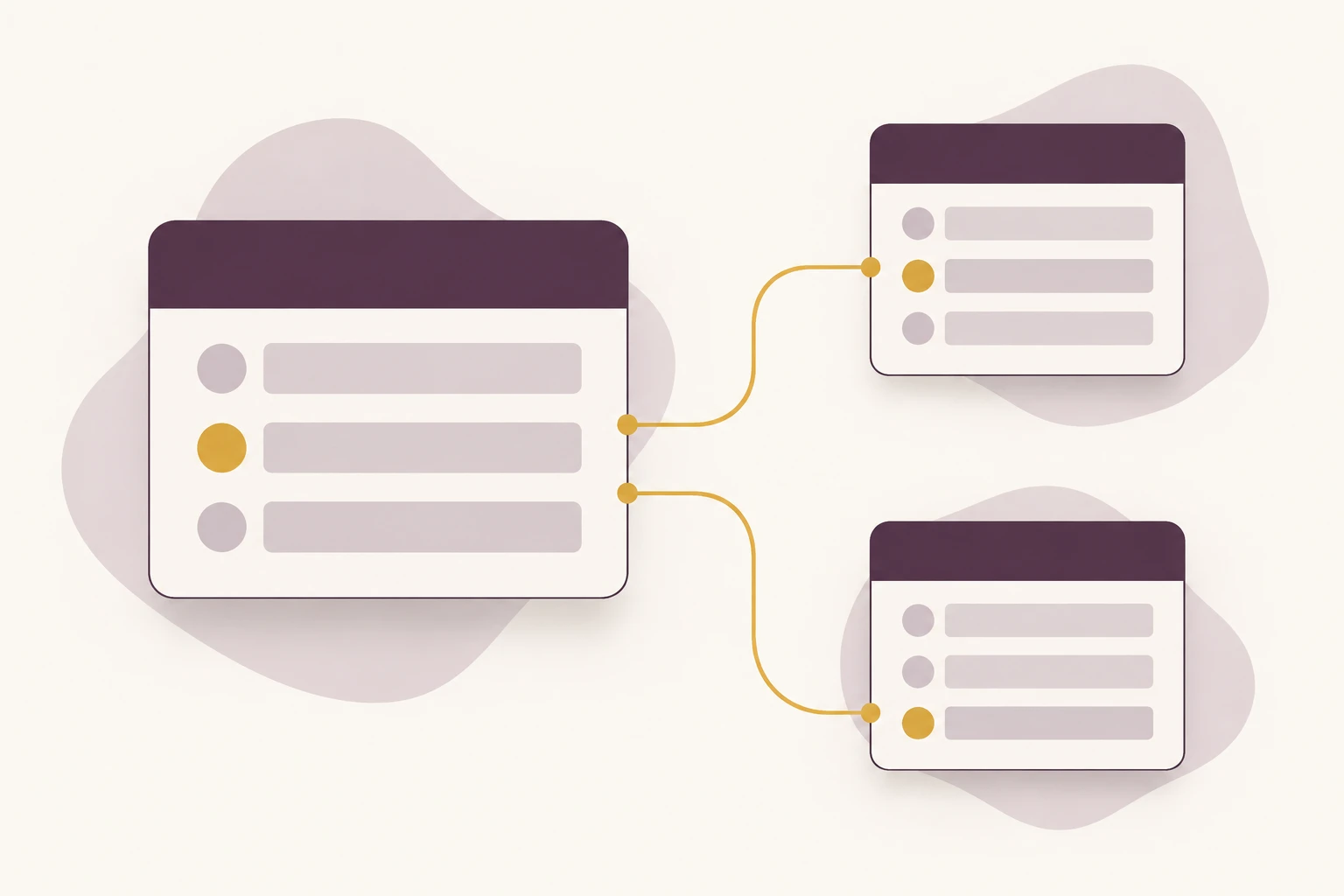
A minimum-stock view helps a buyer decide what to review next. Record a physical count difference as an adjustment with a reason and owner, so colleagues can understand the change later.

Start with four tables. Link movement records to stock positions and summarize signed quantities with a Rollup; combine that result with the opening balance. Review the calculation and write rules before inviting the team.
SKU · name · unit · category · supplier
The reusable item definition. Keep the SKU stable when a supplier changes the product description.
Location ID · name · owner · storage notes
Identify a stockroom, shelf or service vehicle. Use the level of detail your team can consistently maintain.
Product link · location link · opening · minimum
One record per product/location pair. Show the calculated balance and compare it with that position's minimum.
Position link · signed quantity · date · reference
Retain receipts, issues and count adjustments. For a transfer, connect the outgoing and incoming entries with one reference.
Track consumables across the store and event kits, with returns recorded after each job.
Build an inventory app for event supplies. Link products, kit locations and movements. Record issue and return quantities against an event reference, show remaining stock by location and add a minimum-stock view for the store coordinator.
Keep a service van's parts separate from the main stockroom and link usage to jobs.
Create a spare-parts inventory with main stockroom and service-van locations. Link every parts issue to a job reference. Add transfers with matching incoming and outgoing quantities, a movement history and a technician-facing issue form.
Give a buyer a review list based on location-specific thresholds and supplier details.
Build a stock app from my SKU list. Keep separate opening and minimum quantities per location, calculate balances from signed movements and group low-stock positions by supplier. Add a purchasing review status and link purchase order references.
| Daily need | Spreadsheet | Teable | Dedicated inventory system |
|---|---|---|---|
| Changing your model | Edit columns and formulas | Configure linked fields, views and an app | Use the vendor's configuration and extension options |
| Recording stock | Maintain a consistent movement sheet | Connect movement history to item/location positions | Evaluate built-in receiving, picking and counting workflows |
| Team workflow | Shared sheets work for a simple process | Configure task-specific forms and record access | Check warehouse roles, devices and required integrations |
Choose a representative set of SKUs. Confirm units, locations and opening quantities, then import the list or attach it with your request.
Ask Teable for the linked tables, movement forms and low-stock view. Test a receipt, issue, transfer and count correction against known quantities.
Set access, test simultaneous entries and agree who reconciles counts. Start with one stockroom, then extend the model after the team has used it.
Yes. Teable's Free plan includes App Builder and a one-time AI allowance. Start with a small model and review the result. When that allowance is used, choose a suitable plan or available AI capacity for further building. Check the current row, storage and AI limits on the pricing page. Compare plans
Yes. Import an Excel or CSV list and map its columns to your fields. Check SKU codes, units and duplicate product/location pairs first. Keep a dated copy of the opening quantities so later movement totals are easy to reconcile.
Keep opening quantities separate from signed movements. Add receipts, subtract issues and record adjustments with reasons. Link movements to the correct stock position, then use a Rollup and formula to calculate the balance. Verify the calculation with a small known example.
Yes. Give each product/location pair its own stock record. Record both sides of a transfer under a shared reference. Test your app's validation and write behavior before several people use it together.
Use web resources for product specifications or catalog references. For continuing stock updates, define an integration with the actual stock source and its authorization, update rules and conflict handling. Choose the authoritative source before connecting it.
Configure collaboration permissions and the app's login and access settings for your team. More detailed row and field controls depend on your plan. Test with the intended user role, including direct record access, before rollout.
Consider one when you need established picking, barcode hardware, valuation, lot tracking or ERP integrations. Teable suits a workflow you want to shape around connected business records. Compare those requirements before deciding which system will own your stock.

Products
AI app builder
No-code app builder
Excel to app
Spreadsheet to app
Dashboard Creator
AI project management
Online form builder
AI web scraper
Find Influencer
AI email parser
Workflow generator
All Products
Compare
Airtable Alternative
NocoDB Alternative
Baserow Alternative
n8n Alternative
Google Sheets Alternative
Excel Alternative
Smartsheet Alternative
Lovable Alternative
Zapier Alternative
SmartSuite Alternative
monday.com Alternative
All Compares


