Workspace equipment
Operations teams combine a supplier quote with the setup list and delivery requirements.
Bring a quote, item list or purchasing brief. Teable organizes the details into a purchase order Artifact, asks for missing information and helps you refine it.
Trusted by teams at












A buyer’s order tells a supplier what to provide, in which quantity and on what terms. Teable assembles it from your material rather than leaving you to copy every field.
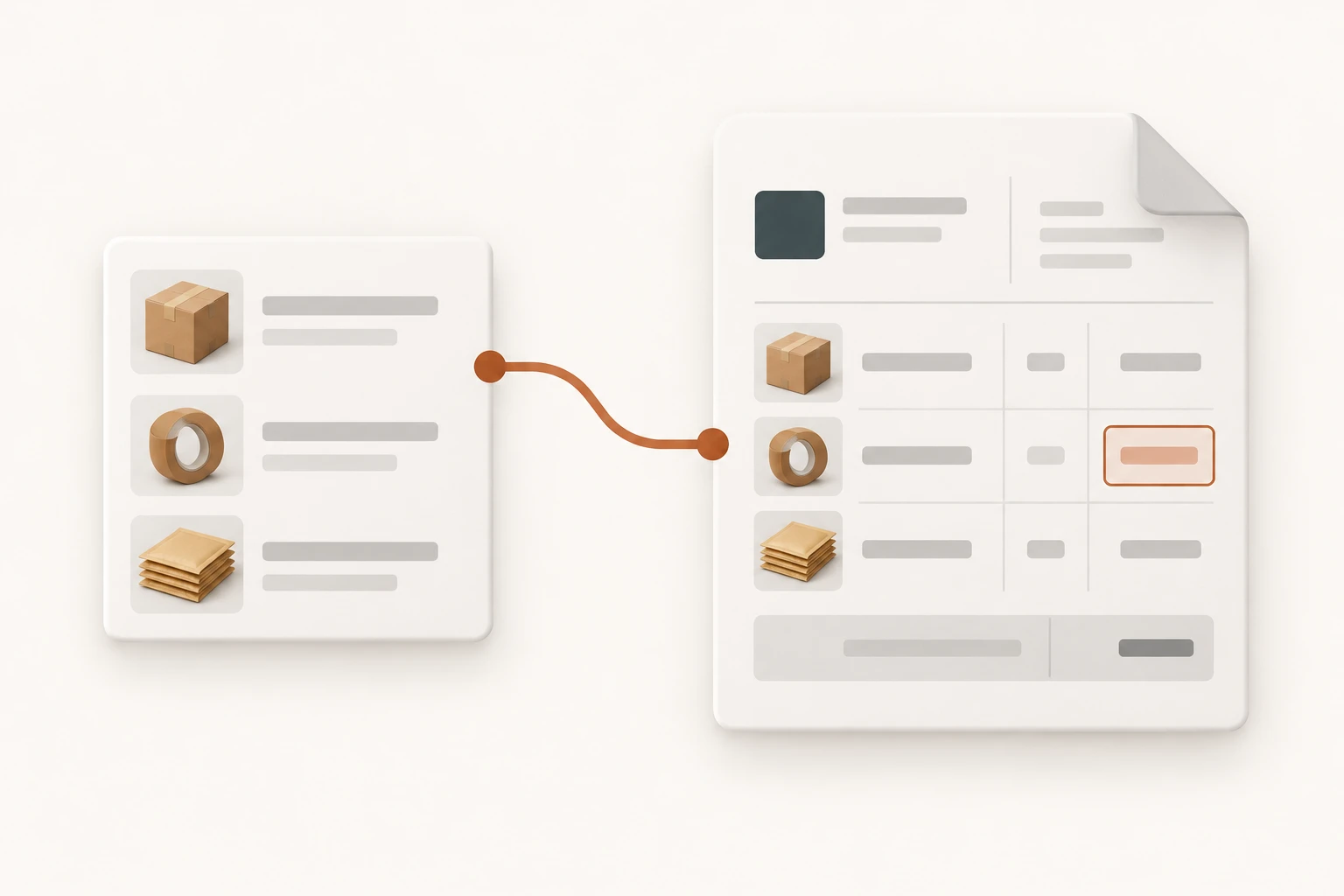
Change a quantity or add the missing quoted price. Line amounts update, while an unpriced item stays visibly unresolved.
Illustrative office-equipment order
Purchase order draft
Use a dot for decimals. Change a quantity or unit price to see the subtotal update.
| Item | Unit | Quantity | Unit price | Amount |
|---|---|---|---|---|
| Task chair · mesh backCHAIR-M | each | USD 779.70 | ||
| Monitor arm · single screenARM-S | each | USD 237.00 | ||
| Cable organizer kitCABLE-K | kit | Needs confirmation | Needs confirmation |
Known line amounts only
USD 1,016.70
Unpriced or incomplete lines: 1
Sample data. The subtotal covers item lines; add agreed tax and shipping to complete the order.
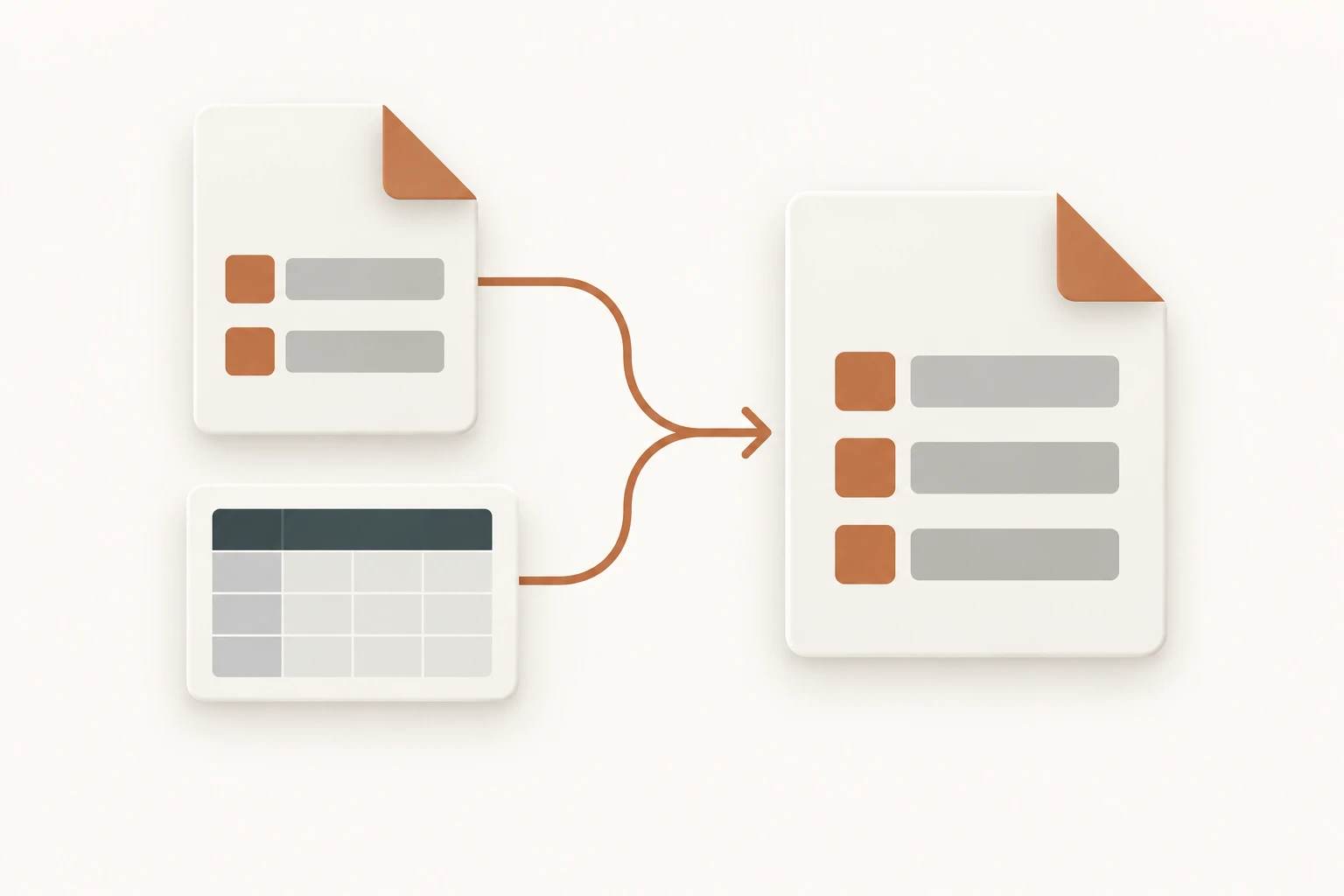
Use a supplier quote, an order list or an online source. Preserve item codes and purchasing units so the document matches the agreement.
Ask the Agent to change the layout, clarify a line or separate delivery batches. Share the reviewed Artifact with the access you choose.
Operations teams combine a supplier quote with the setup list and delivery requirements.
Store owners turn reorder quantities into separate supplier orders, with the correct purchasing units.
Project teams specify an agreed scope, deliverables and dates without exposing internal estimates.
Clear data suits a simple template. Teable helps when quotes, lists and working context need to come together.
| Task | Excel or Word template | Fixed-field generator | Teable |
|---|---|---|---|
| Starting material | Enter data into a familiar layout | Fill the provider’s order fields | Bring quotes, lists and connected context |
| Changes | Edit cells, text and formulas | Use the fields and layouts offered | Ask the Agent to revise the Artifact |
| Result | Save using the office tool’s formats | Use the provider’s export options | Review and share an HTML Artifact |
| Later work | Maintain a separate tracking sheet | Depends on the provider | Add order records and workflows when needed |
Add the quote or list and tell Teable who is buying and which supplier to use.
Check item codes, units, prices, delivery and payment terms. Resolve missing values.
Adjust the Artifact, review the supplier copy and select the appropriate sharing access.
Teams use Teable to organize shared information and adapt their workflows.
AI Leader · Google DeepMind

I used Teable for a team with leads spread across sheets, CRM exports, and automations. We now import, follow up, and track dashboards in one flow. One system replaced half a dozen disconnected tools.
AI Systems Builder · AI SCWORK

🧨 Teable does not just compete with Airtable. It exposes what Airtable is missing. Modern teams do not need nicer spreadsheets. They need operational systems that can run themselves. Teable turns tables into workflows, AI actions, and internal apps.
AI Consultant & AI Engineer · Adway
Teable 3.0 feels like a grown-up spreadsheet. It keeps the familiar grid and adds automations, AI actions, and internal app building in one platform. I finally got the control model I used to assemble manually.
Yes. Teable’s free plan includes trial credits for AI tasks, so you can start with a quote or item list. Usage varies with the materials and work requested. Check your available credits, and visit pricing when you need a plan for larger runs. View pricing and free-plan details
Include the buyer, supplier, requested items, quantities and purchasing units. Add confirmed prices, currency, delivery details, payment terms and an order reference if you have them. A quote or previous order is useful context. Teable can ask for missing details instead of filling them with assumptions.
Yes. Attach your quote or spreadsheet in the input above, or select a data source and add its reference. Identify the supplier and quote version. Use product pages for specifications and supply the price and delivery terms agreed with the supplier.
Teable can organize and calculate amounts using the values and rules you supply. State the currency and whether unit prices include tax; provide the agreed tax, shipping and discount treatment. Confirm the result before use. Do not combine different currencies or packaging units without an explicit conversion basis.
The default output is an HTML Artifact you can refine through the same conversation. Ask for a different layout, changed quantities or clearer delivery instructions. Review available versions, then use the Artifact’s public, space-member or password-protected sharing mode as appropriate. Keep confidential working notes separate.
No. You first get a purchase order draft to review and edit. Confirm the supplier, amounts and delivery terms, then approve or send it through your team’s purchasing process. For an approval or notification workflow, specify the approvers and execution conditions.
Yes. Start with the purchase order, then ask Teable to add linked supplier, order and line-item records for ongoing follow-up. Add receiving details and adapt statuses, views and permissions to your team.
The purchase order is a shareable HTML Artifact. Open the generated document, use your browser’s Print command and choose Save as PDF. Check page breaks, item lines and amounts in print preview before saving.
Bring the quote or list. Review the details, then share the Artifact.
Explore all products
Products
AI app builder
No-code app builder
Excel to app
Spreadsheet to app
Dashboard Creator
AI project management
Online form builder
AI web scraper
Find Influencer
AI email parser
Workflow generator
All Products


